Database to Sage Intacct Integration
- Setup your Database for Integration. In this Tutorial I am using MySQL Database Named "Sage IntacctDB".
- Create tables "dbaccount" in Database with following script.
Database Script : MYSQL | Database Script : SQLSERVER | Database Script : Oracle |
create table `Sage IntacctDB`.`dbAccount` (`AccountID` varchar(100) NOT NULL , `AccountName` text NOT NULL , `BillingStreet` text , `BillingPostalCode` numeric(20) , `AnnualRevenue` decimal(30,2) , `CreatedDate` date , `LastModifiedDate` datetime , `NumberOfOfficeLocations` int , PRIMARY KEY (`AccountID`) ); | create table dbAccount (AccountID varchar(100) NOT NULL , AccountName text NOT NULL , BillingStreet text , BillingPostalCode numeric(20) , AnnualRevenue decimal(30,2) , CreatedDate date , LastModifiedDate datetime , NumberOfOfficeLocations int , PRIMARY KEY (AccountID) ); | CREATE TABLE "SYS"."DBACCOUNT"
("ACCOUNTID" VARCHAR2(20 BYTE) NOT NULL ENABLE,
"ACCOUNTNAME" VARCHAR2(100 BYTE),
"BILLINGSTREET" VARCHAR2(50 BYTE),
"BILLINGPOSTALCODE" VARCHAR2(50 BYTE),
"ANNUALREVENUE" NUMBER(30,2),
"CREATEDDATE" DATE,
"LASTMODIFIEDDATE" VARCHAR2(40 BYTE),
"NUMBEROFOFFICELOCATIONS" NUMBER(*,0),
CONSTRAINT "DBACCOUNT_PK" PRIMARY KEY ("ACCOUNTID")
);
|
- Enter a sample data in "dbAccount" table.
- Go to www.mydbsync.com. Open www.mydbsync.com in your browser and, click Customer Login.
- Enter your DBSync Username and Password to login. Click on Launch to navigate to the Project console.
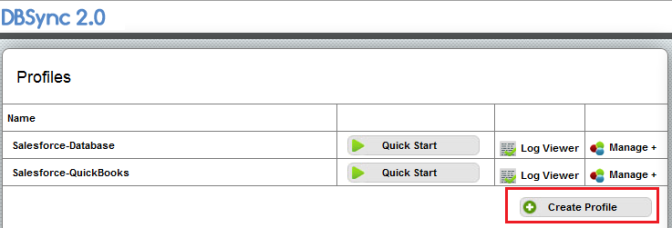
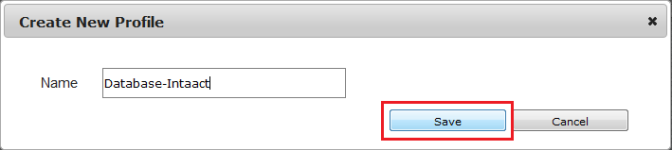
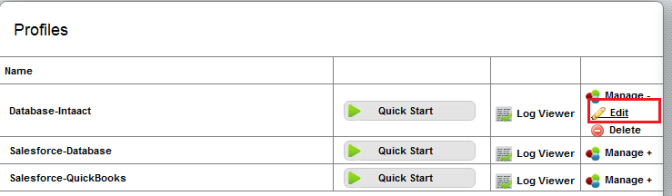
- Click on Project on the left section of the console. Click on Create New Project. Enter Project name as Database-Sage Intacct and click on Save.
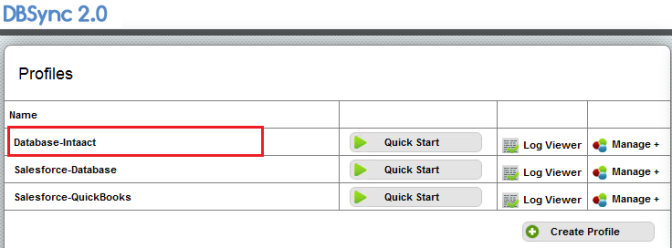
- A new Project will be created by the given Name. In this tutorial, I have used name Database-Sage Intacct.
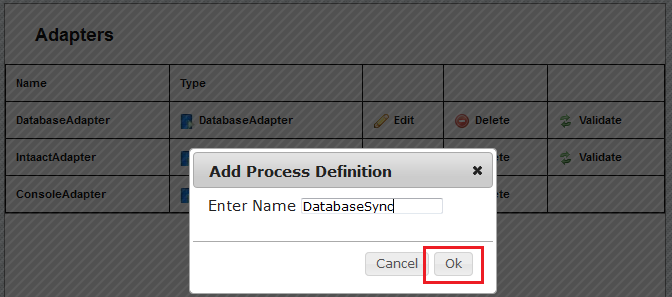
- Click on Create New Process. Enter process name as DatabasetoSage Intacct. Then, click Save, to save the process.
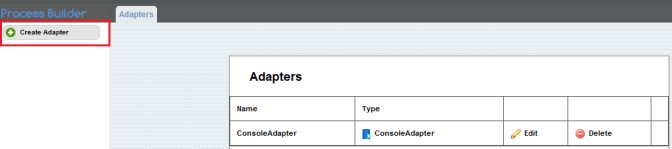
- Click on Connectors on the left section of Project console. You need to create new connectors for Database and Sage Intacct.
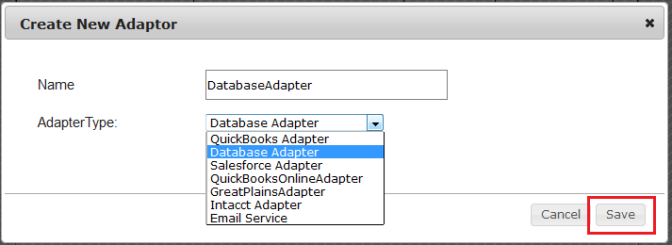
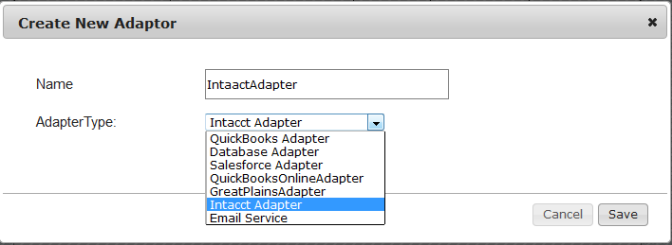
- Click on Create New Connector. Enter the Connector name as Sage Intacct and select the Connector type as Sage Intacct Adapter and click Save.
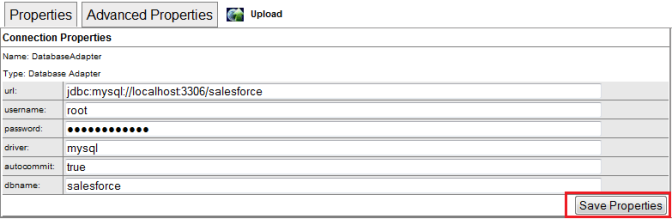
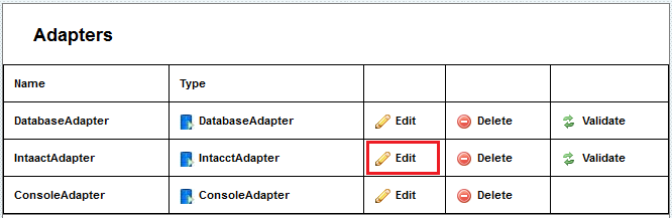
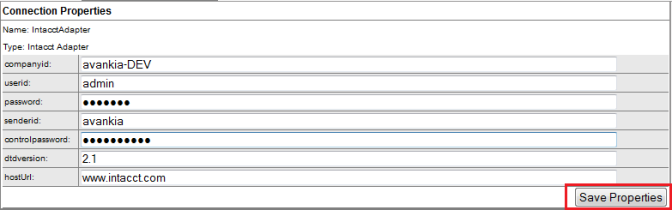
- Enter all the required details. Click Save and then Validate connection.
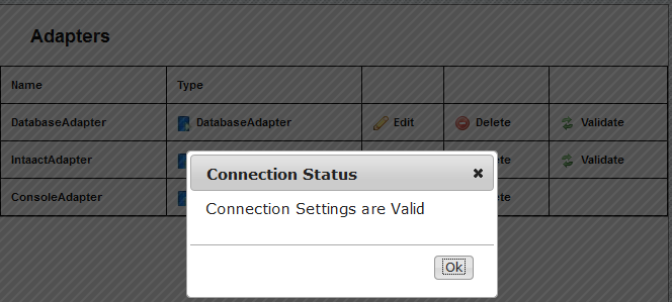
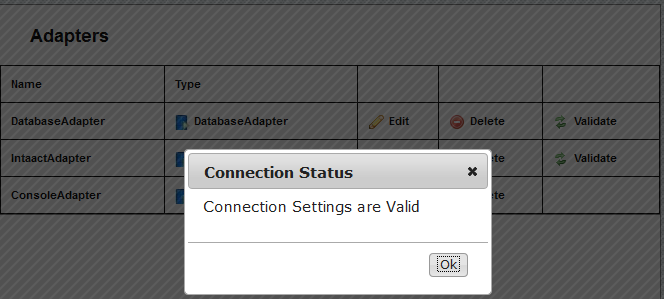
- Sage Intacct Connector is created and the connection is validated. Next, Database adapter need to be created.
- Click on Connectors on the left section of Project console. Click on Create New Connector.
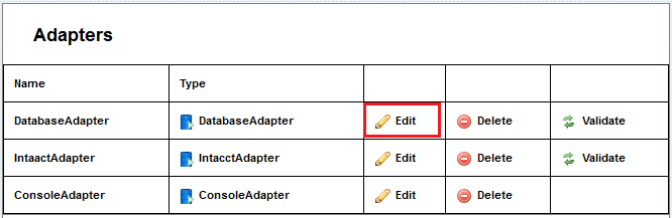
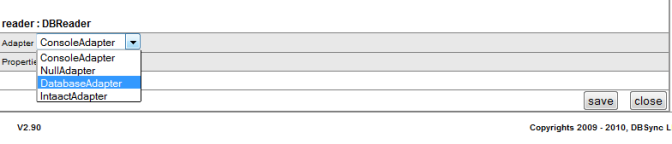
- Enter connection name as Database and select the Connector type as Database Adapter. Click Save.
- Enter all the required details. Click Save and then Validate connection.
- Click on Projects. Then, click on the project Database-Sage Intacct. Here, you will see the new process DatabaseToSage Intacct. Click on the newly created process DatabaseToSage Intacct.
- Using the button Create New Workflow, create the workflow "Execute".
- Click on workflow Execute. You will see two sections: (1) Trigger on the top; and, Rules on the bottom.
- In Trigger section, go to Advanced Query Builder and select Datasource as Database.
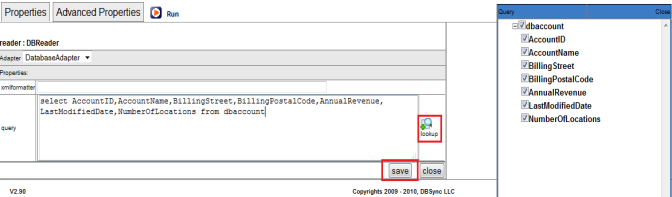
- Click on Switch to Advanced view. Enter the following query in the Query Builder. Click Save and Close.
select AccountID, AccountName, BillingStreet, BillingPostalCode, AnnualRevenue, LastModifiedDate, NumberOfLocations from dbaccount.
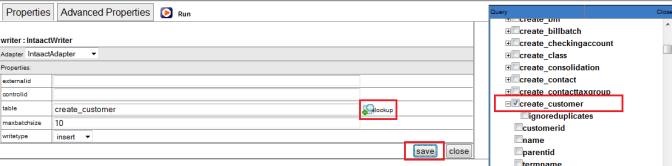
- In Rules section of a workflow, click on Add New Rule. Select Target Connector, Operation, Target Object as Sage Intacct, Insert and create_customer, respectively.
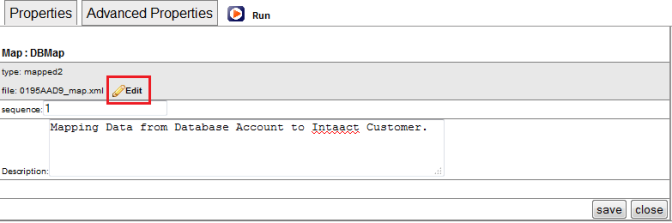
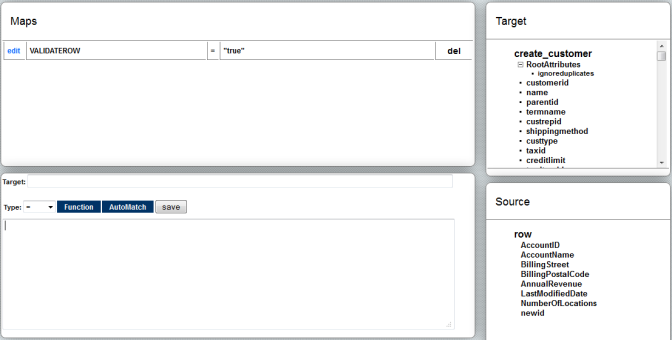
- Click on the Map in this newly created Rule. You will see a mapping screen.
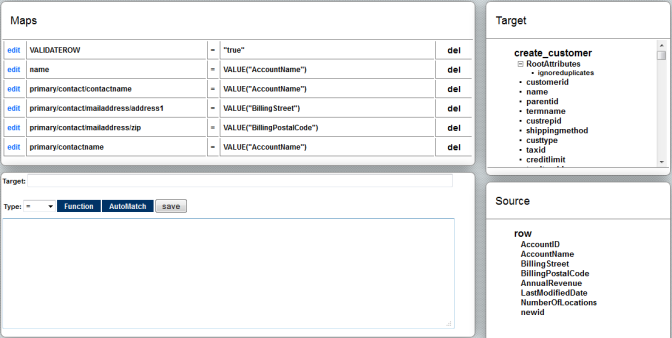
- In the mapping screen, you will see a list of target fields in the left section. On the right, you will see the source fields under Schema.
- Drag and drop required fields from Schema into the required source fields.
- Once you are done, close the mapping screen. Click 'Save and Close' on the top right. Save the workflow and make sure that the status of workflow is On.
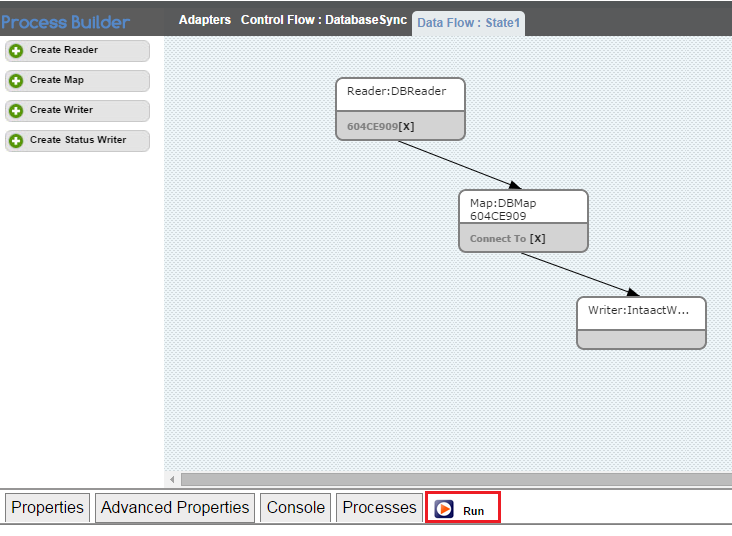
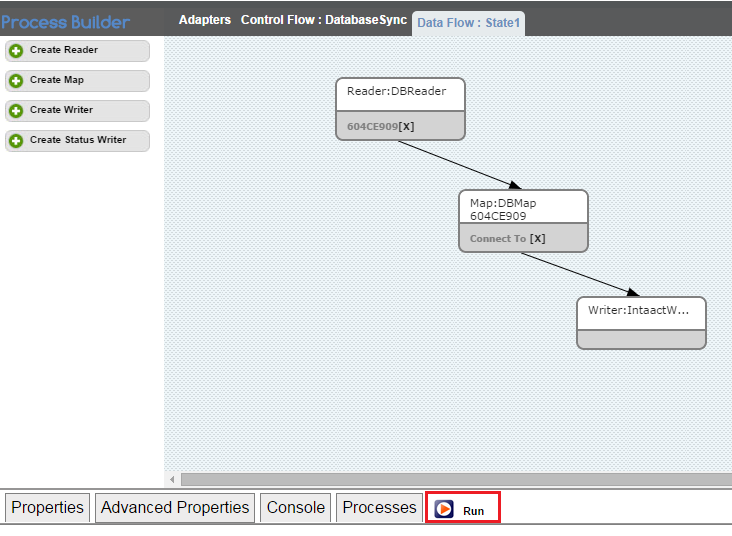
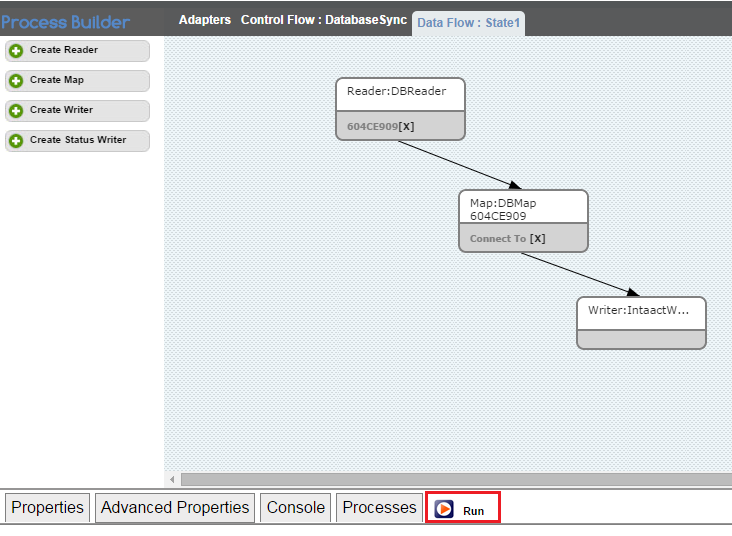
- You can run the integration using the Run button; or, the Scheduler on the left section of Project console. Run button is available once you open the Project.
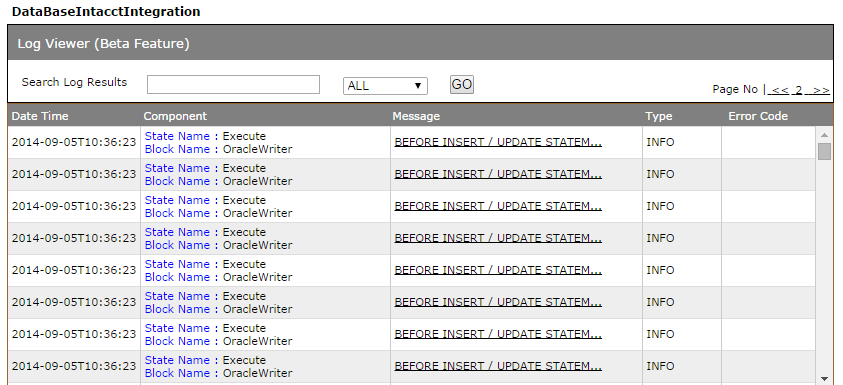
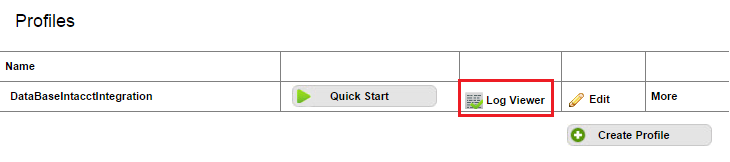
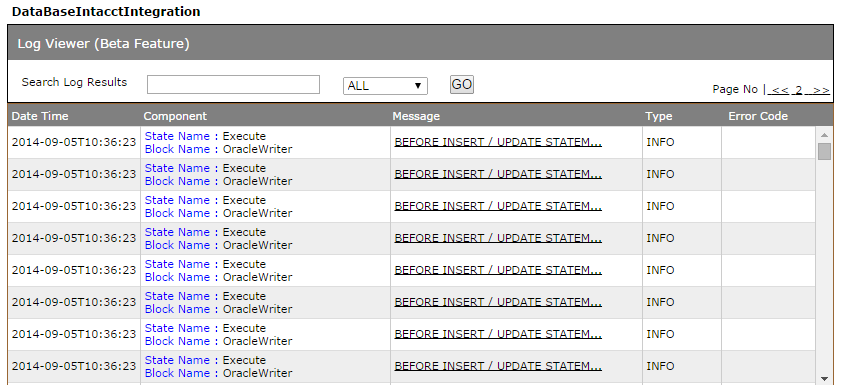
- Using the button Logs on the left section, you can view the Logs.
- This concludes brief introduction on how to build DBSync integration data flow from Database to Sage Intacct.
Attachments:
 worddav0a0d86b43f2d98e4a7ac34751e99f6f9.png (image/png)
 worddav0de3662eb72d5e99e482d2ee1d1dba2f.png (image/png)
 worddav9e626cf22b071109f6bb2c28b27cffa4.png (image/png)
 worddav931bb05fab8cb712c2811f8ab2a502f3.png (image/png)
 worddav30f373bc30d17c08cdf596851eac7ead.png (image/png)
 worddav1423c64f80d11194fe53a23771e00bc5.png (image/png)
 worddav495508108340aa9700213f80e88e48bd.png (image/png)
 worddavb0537c8250de41bc8b122ddf21913afd.png (image/png)
 worddavcf999c42a4a251f2ffbbd3504c349963.png (image/png)
 worddav59f9b1a83b41d1e90ca98867263c6dbf.png (image/png)
 worddavbf9b04f6229923ab6f5252f087e19edf.png (image/png)
 worddav532e1d126d0a784dc9f117b1fcb6a8e9.png (image/png)
 worddavf5f82e5331b7d27a96eff38a5d1cdf7d.png (image/png)
 worddavdb28252887162d757fc880f091ec6e77.png (image/png)
 worddavad5c18a633db9860274d36b490b47e89.png (image/png)
 worddav11019e667efe19963fe8017aa00e9b36.png (image/png)
 worddava63e0b8c48183423b1f53962e87cb9da.png (image/png)
 worddavb91b6bc53d41cb9f28439009df872a81.png (image/png)
 worddav5edcd497777ce4d5d5c267be769a16a1.png (image/png)
 worddava133bf9f97bbcca70a0c4fc475f44d32.png (image/png)
 worddav211d2f527c22c742ae149bdf41535cf0.png (image/png)
 worddavd55cd4de4ee48899bfece7f451cd0bcc.png (image/png)
 worddavc2f8ab87727be5a6fae1344e28232826.png (image/png)
 worddav1947588eee79d0fef02ec5b7127abc72.png (image/png)
 worddavde50a83180e1f17ba2e35d40ee55afb3.png (image/png)
 worddav0aa42d1bbfb9cdb2d7e4ebb1139ee508.png (image/png)
 worddava961e81c2932493dcc21246f89ec1296.png (image/png)
 worddav0061cf66b585910670197168b2742ce0.png (image/png)
 worddav287ef6433274ca3688c95d9953e54a7a.png (image/png)
 Run the Sync.png (image/png)
 P1.png (image/png)
 P2.png (image/png)
 P3.png (image/png)
 P4.png (image/png)
 P5.png (image/png)
 RunPage.png (image/png)
 RunPage.png (image/png)
 LogViewer.png (image/png)
 LogMessages.png (image/png)
 RunPage.png (image/png)
 LogMessages.png (image/png)