- Register for Free Trial of Salesforce & QuickBooks:
Go to www.mydbsync.com, click on Register for Free Trial to register for DBSync Account.
- Include ServiceMax Process Template to DBSync Account:
Login to your DBSync Account, go to process template tab, click on ServiceMaxQuickBooks:UniDirectional to include the template to your account. Go to My home tab & click on Launch, you will find the new ServiceMax process template.
- Install DBSync Package into ServiceMax Salesforce instance:
This topic is explained in detail at the end.
- Configure DBSync with QuickBooks Web connector:
Steps involved in configuration is available in the below wiki link
http://help.mydbsync.com/docs/display/dbsync/Configuring+DBSync+with+Quickbook+WebConnector
- Run Integration using QuickBooks Web Connector:
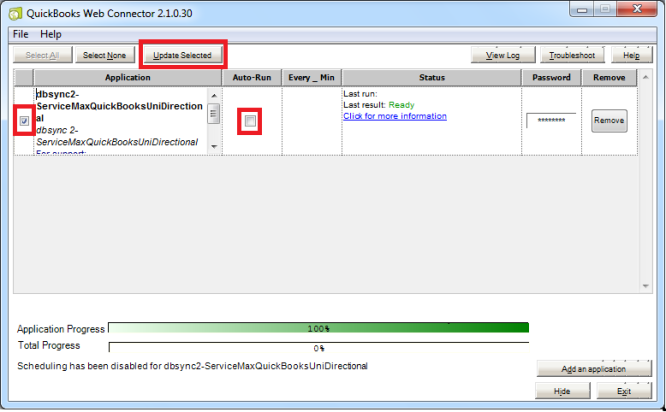
Use QuickBooks Web connector to run integration by selecting the right application in Web Connector
Update Selected helps to initiate sync manually where as Auto-Run is used to schedule integration.