Integration from Salesforce to QuickBooks
- If multicurrency is enabled in Salesforce and QuickBooks then, we need to make some changes in DBSync settings and mappings to achieve seamless integration with MultiCurrency.
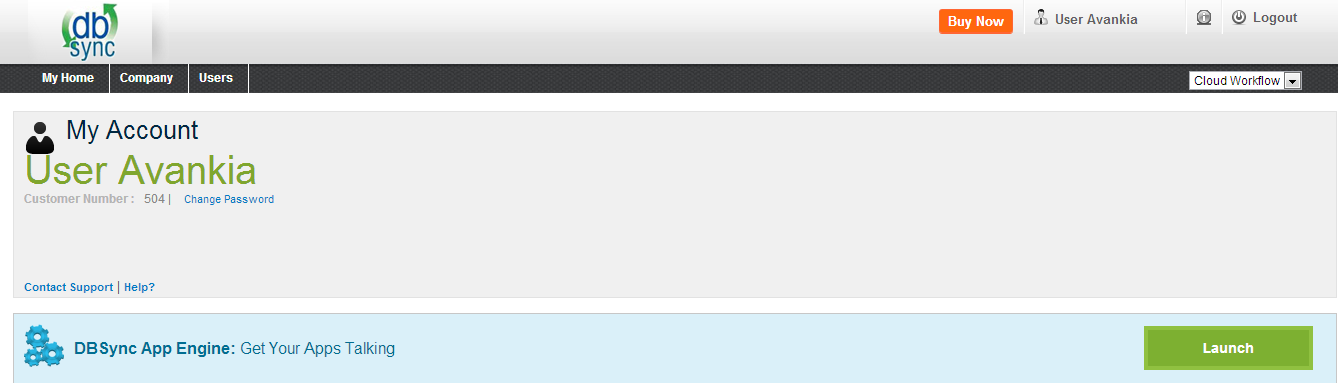
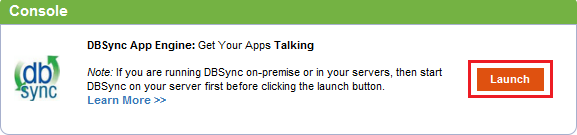
- Go to www.mydbsync.com and select Customer Login. Enter your Username and Password and click on Sign in. Click on Launch, to launch the DBSync Project page.
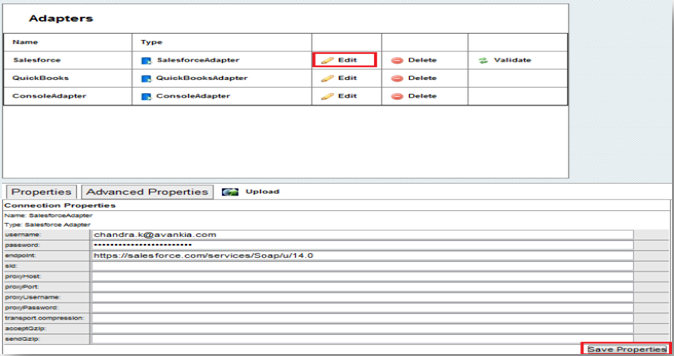
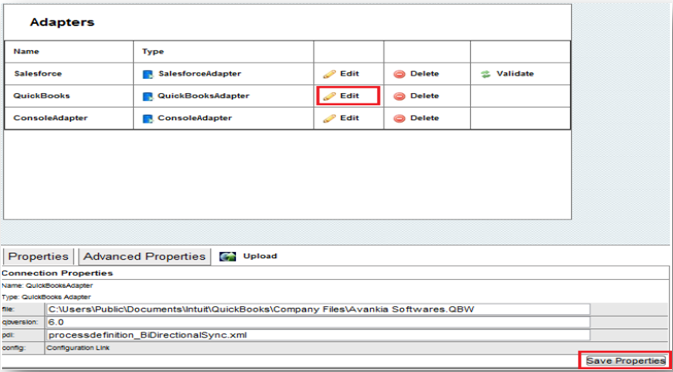
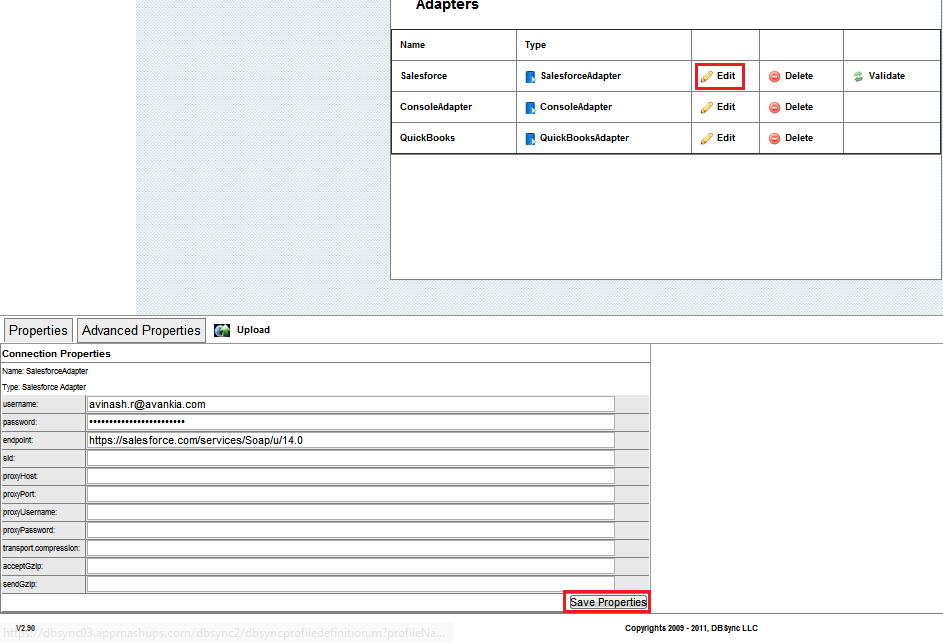
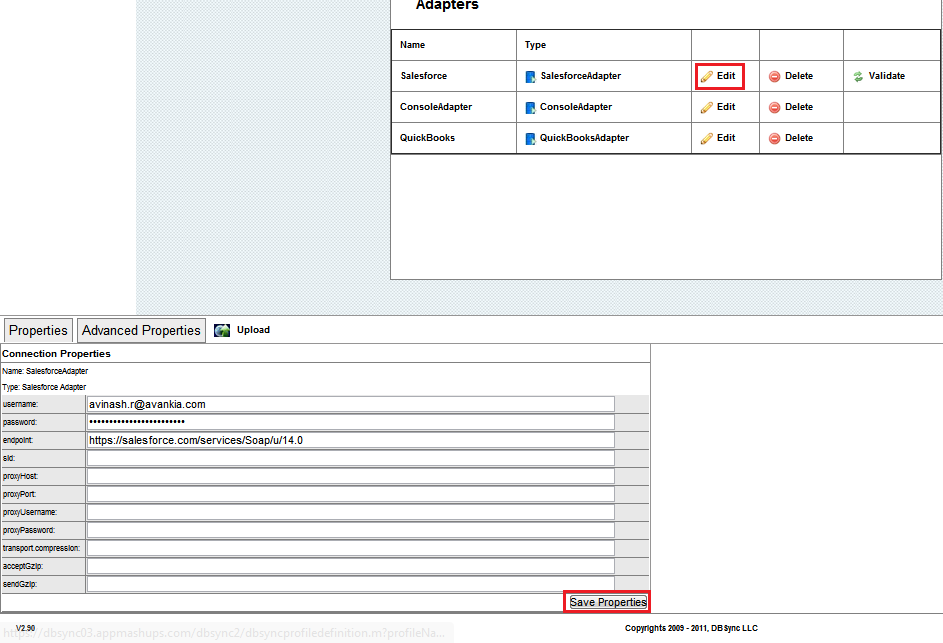
- Ensure that Salesforce and QuickBooks connectors are validated. You should have process template SalesforceQuickBooksBiDirectional.
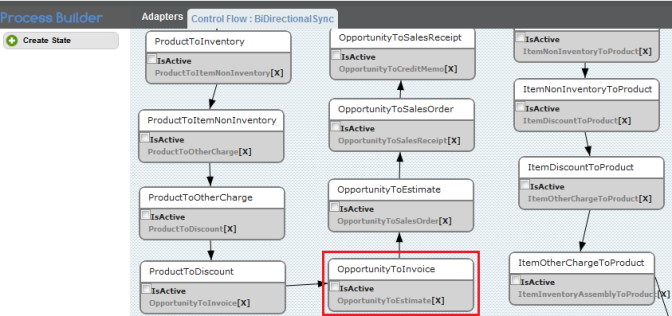
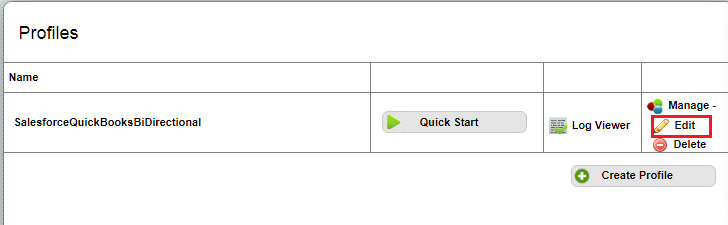
- Click on Projects then, select and open the relevant Project. You will see the available processes. Select and open the relevant Process. You will see a list of available Workflows.
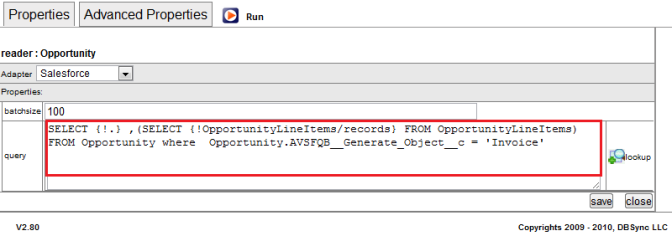
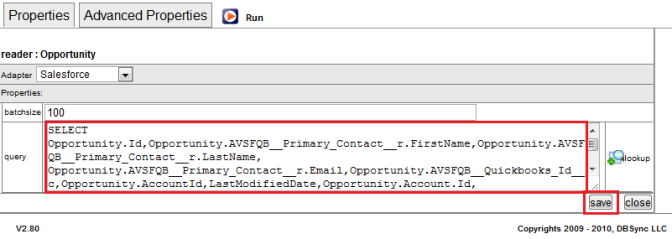
- Open workflow OpportunityToInvoice. Replace the reader query in the Advanced Query Builder with the following query and then, click on the Save & Close button.
SELECT Opportunity.Id,Opportunity.AVSFQB__Primary_Contact__r.FirstName,Opportunity.AVSFQB__Primary_Contact__r.LastName,Opportunity.Owner.QB_SalesRep_ID__c,
Opportunity.AVSFQB__Primary_Contact__r.Email,Opportunity.AVSFQB__QuickBooks_Id__c,Opportunity.AccountId,LastModifiedDate,Opportunity.Account.Id,
Opportunity.Account.CurrencyIsoCode,Opportunity.Account.Name,Opportunity.Account.BillingStreet,Opportunity.Account.BillingCity,
Opportunity.Account.BillingState,Opportunity.Account.BillingPostalCode,Opportunity.Account.BillingCountry,Opportunity.Account.ShippingStreet,
Opportunity.Account.ShippingCity,Opportunity.Account.ShippingState,Opportunity.Account.ShippingPostalCode,Opportunity.Account.ShippingCountry,
Opportunity.Account.Fax,Opportunity.Account.Phone,Name,Description,CloseDate ,(SELECT Quantity,UnitPrice,Description,Opportunity.owner.FirstName,
Opportunity.owner.LastName,Opportunity.Id,Opportunity.CloseDate,PricebookEntry.Name,PricebookEntry.Product2.ProductCode,PricebookEntry.Product2.Name,
PricebookEntry.Product2.Description,PricebookEntry.Product2.Id,PricebookEntry.UnitPrice,PricebookEntry.Product2.AVSFQB__QuickBooks_ItemType__c FROM
OpportunityLineItems) ,Opportunity.Account.AVSFQB__QuickBooks_Id__c,Opportunity.AVSFQB__Generate_Object__c FROM Opportunity where
Opportunity.AVSFQB__Generate_Object__c = 'Invoice'
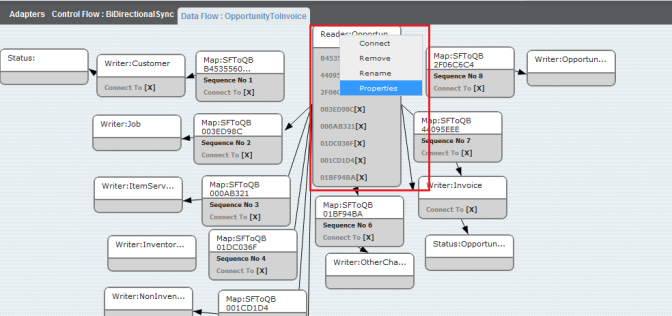
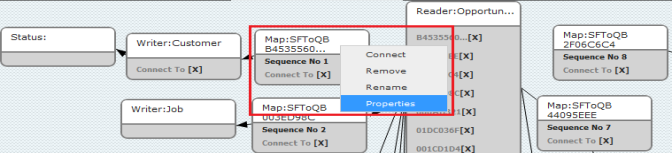
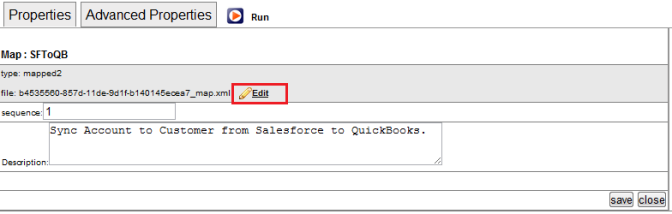
- In the Rules section, you will see a list of 9 Rules. Open the map of the sequence no.1 Rule.
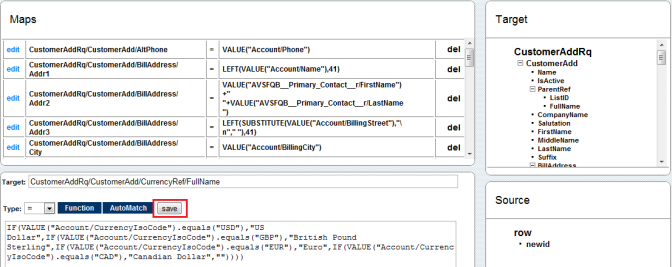
- Add the following mapping in the mapping window and click on the Save & Close button.
CustomerAddRq/CustomerAdd/CurrencyRef/FullName = IF(VALUE("Account/CurrencyIsoCode").equals("USD"),"US Dollar",IF(VALUE("Account/CurrencyIsoCode").equals("GBP"),"British Pound Sterling",IF(VALUE("Account/CurrencyIsoCode").equals("EUR"),"Euro",IF(VALUE("Account/CurrencyIsoCode").equals("CAD"),"Canadian Dollar",""))))
Add the same mapping to following workflows as well if, you are using these workflows in Integration:
- OpportunityToSalesOrder
- OpportunityToSalesReceipt
- OpportunityToEstimate
- OpportunityToCreditMemo
Integration from QuickBooks to Salesforce
- If QuickBooks is enabled with Multi-Currency then, the following changes need to be made to the mappings in DBSync.
- Go to www.mydbsync.com and select Customer Login. Enter your Username and Password and click on Sign in. Click on Launch to launch the DBSync Project page.
- Ensure that the Salesforce and QuickBooks connectors are validated. You should have process template SalesforceQuickBooksBiDirectional.
- Click on Projects, select and open the relevant Project. You will see the available processes. Select and open the relevant Process. You will see a list of available Workflows.
- Open workflow CustomerToAccount. In Rules Section, Open the Mapping for "Sequence No 1"
- Open workflow InvoiceToOpportunity. In the Rules section, open the mapping for "Sequence No 1 and 2".
- Add the mapping where target field = "CurrencyIsoCode" and add the following code under source field:
IF(VALUE("CustomerRef/FullName/CustomerRet/CurrencyRef/FullName").equals("US Dollar"),
"USD",IF(VALUE("CustomerRef/FullName/CustomerRet/CurrencyRef/FullName").equals("British Pound Sterling"),
"GBP",IF(VALUE("CustomerRef/FullName/CustomerRet/CurrencyRef/FullName").equals("Euro"),
"EUR",IF(VALUE("CustomerRef/FullName/CustomerRet/CurrencyRef/FullName").equals("Canadian Dollar"),"CAD",""))))
- Similarly, open the mapping for "Sequence No 5" in the new window/tab.
- Add the mapping where target field = "CurrencyIsoCode". Then, add the following code under source field:
IF(VALUE("CustomerRef/FullName/CustomerRet/CurrencyRef/FullName").equals("US Dollar"),
"USD",IF(VALUE("CustomerRef/FullName/CustomerRet/CurrencyRef/FullName").equals("British Pound Sterling"),
"GBP",IF(VALUE("CustomerRef/FullName/CustomerRet/CurrencyRef/FullName").equals("Euro"),
"EUR",IF(VALUE("CustomerRef/FullName/CustomerRet/CurrencyRef/FullName").equals("Canadian Dollar"),"CAD",""))))
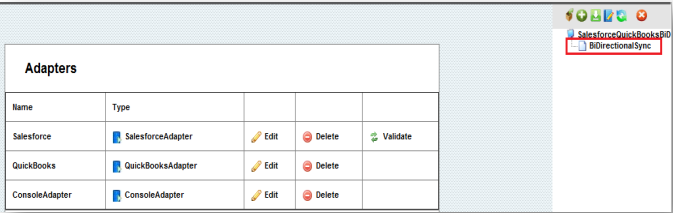
- Double-click on the process flow, "BiDirectionalSync". Then, open the "InvoiceToInvoice" state. Open the mapping "Sequence No 1" and add the same mapping as shown in the example above.
- This completes the Multicurrency customizations.
Attachments:
 worddav7d30ad3a47f5a11672728dc6d5e29671.png (image/png)
 worddav42f610f3f2ef8657de6aad4f1b1b2d4e.png (image/png)
 worddav6c23d1b0d27483508663a9a6493d71ff.png (image/png)
 worddave91237dbaa8fa3c0af55778d5893ce4a.png (image/png)
 worddav1f398f92818202988d5696b15033f0b7.png (image/png)
 worddavf48ddf3d35b277c87f73a12b73353549.png (image/png)
 worddavf940367d274071b0ceda10d5568fea90.png (image/png)
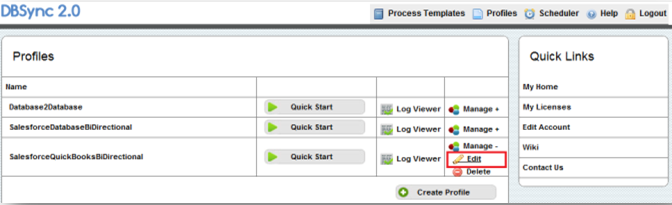
 Edit Profile.png (image/png)
 Edit Salesforce Adapter.png (image/png)
 Edit QuickBooks Adapter.png (image/png)
 BiDirectional Sync Process.png (image/png)
 Launch Console.png (image/png)
 Manage.png (image/png)
 edit.png (image/png)
 edit.png (image/png)
 multi-Curr2.png (image/png)
 Picture11.png (image/png)