Sage Intacct to Database Integration
- Setup your Database for Integration. In this Tutorial I am using Oracle Database named "Sage IntacctDB".
- Create table "Account" in Database with following script.
Database Script : MYSQL | Database Script : SQLSERVER | Database Script : Oracle |
create table `Sage IntacctDB`.`dbAccount` | create table dbAccount | CREATE TABLE "SYS"."DBACCOUNT" |
- Open www.mydbsync.com in your browser. Click on Customer Login.
- Enter your DBSync Username and Password to login. Click on Launch to navigate to the Project console.
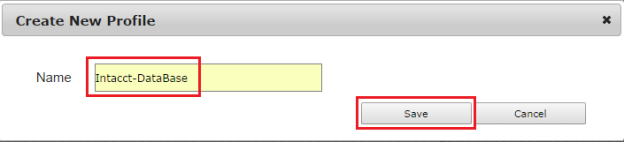
- Click on Project on the left section of the console. Click on Create New Project. Enter project name as Sage Intacct-Database and click Save.
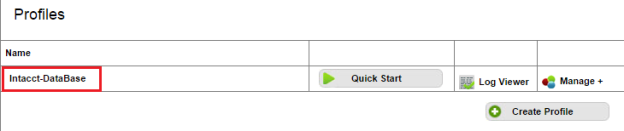
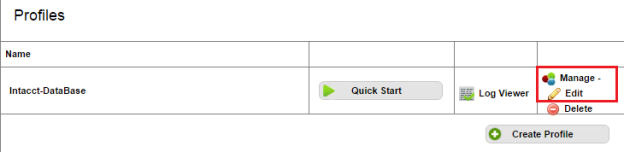
- A new Project will be created by the given Name. In this tutorial I have used name Intact-Database.
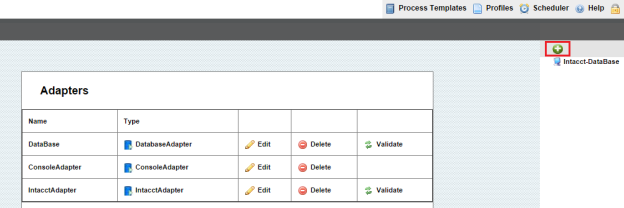
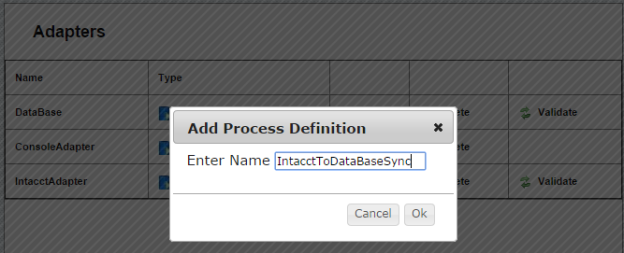
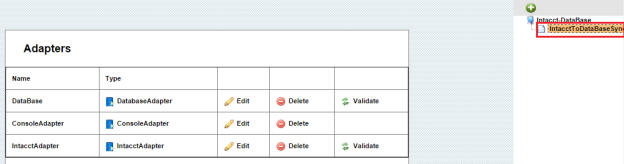
- Click on Create New Process. Enter process name as Sage IntacctToDatabase. Click Save to save the process.
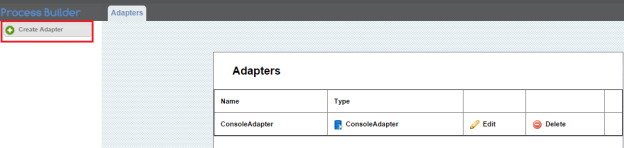
- Click on Connectors on the left section of the Project console. You need to create new Connectors for Database & Sage Intacct.
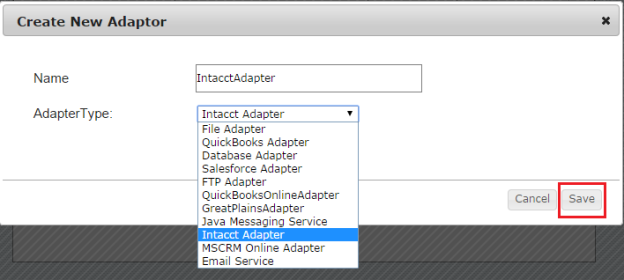
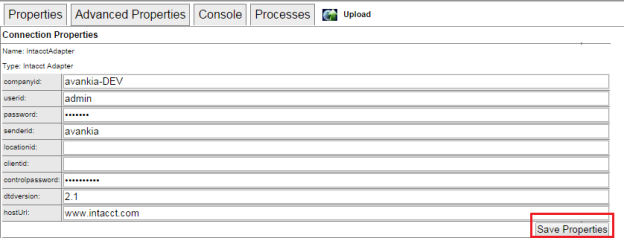
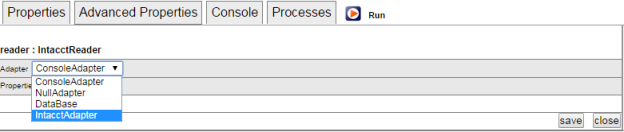
- Click on Create New Connector. Enter the Connector name as Sage Intacct. Select the Connector type as Sage Intacct Adapter and click Save.
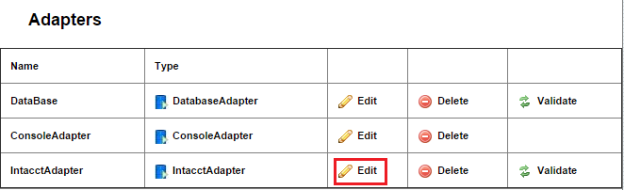
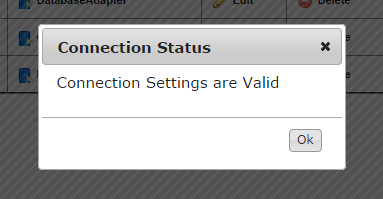
- Enter all the required details, click Save. Then, Validate connection.
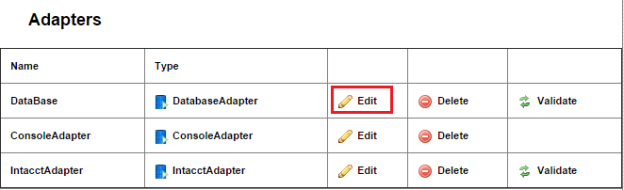
- Sage Intacct Connector is created and the connection is validated. Next, Database adapter needs to be created.
- Click on Connectors on the left section of Project console. Click on Create New Connector.
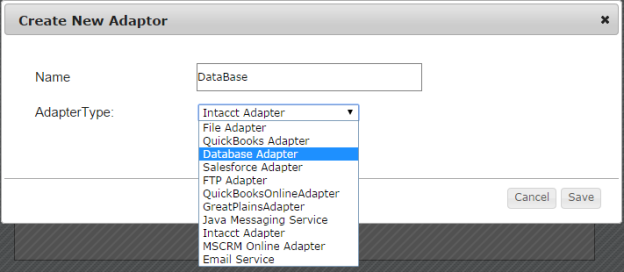
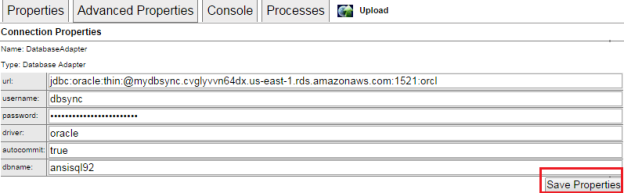
- Enter connection name as Database and select the Connector type as Database Adapter. Click Save.
- Enter all the required details. Click Save. Then, Validate connection.
- Click on Projects. Then, click on the project Sage Intacct-Database. Here, you will see the new process Sage IntacctToDatabase. Click on the newly created process Sage IntacctToDatabase.
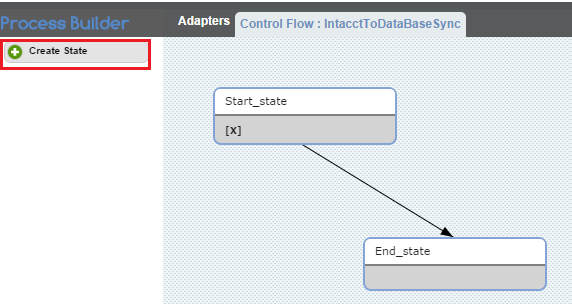
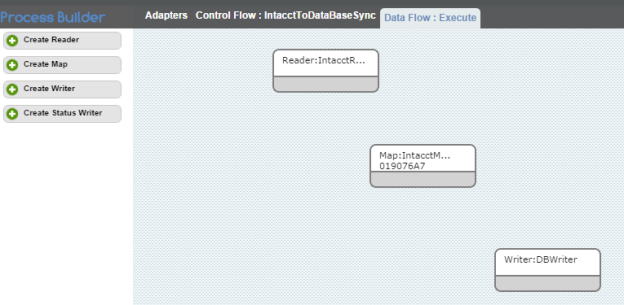
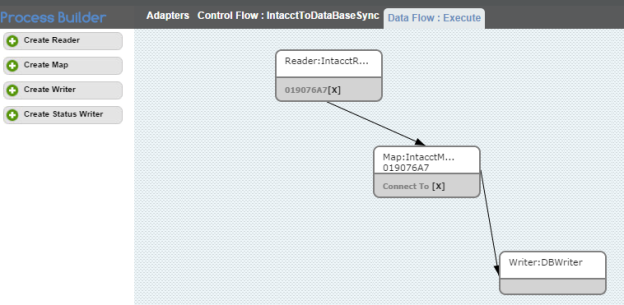
- Using the button Create New Workflow, create the workflow "Execute".
- Click on workflow Execute. You will see two sections: Trigger on the top; and, Rules on the bottom.
- In the Trigger section, go to Advanced Query Builder and select Datasource as Sage Intacct.
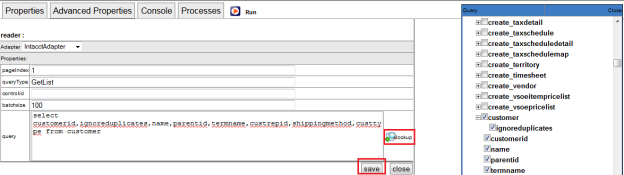
- Click on Switch to Advanced view and enter the following query in the Query Builder. Click Save and Close.
select CustomerID, ignoreduplicates, name, parentid, shippingmethod, custtype from customer
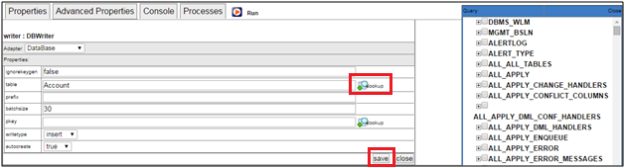
- In the Rules section of a workflow, click on Add New Rule. Select Target Connector, Operation, Target Object as Database, Insert and Account, respectively.
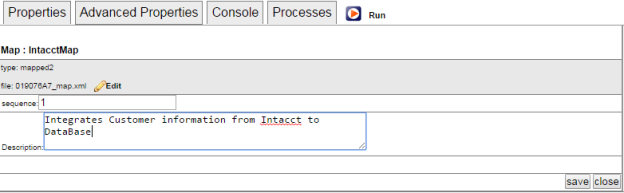
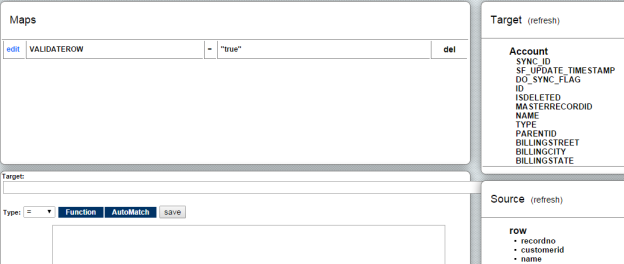
- Click on the Map in this newly created Rule. You will see a mapping screen.
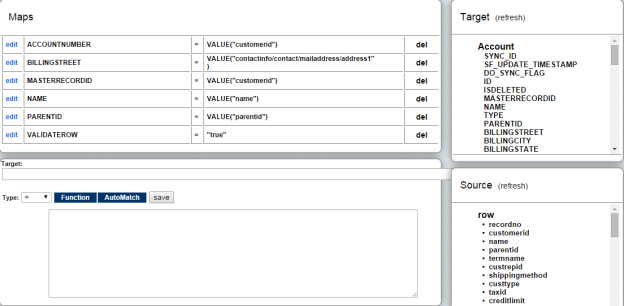
- In the mapping screen, you will see a list of target fields on the left section. On the right, you will see the source fields under Schema.
- Drag and drop the required fields from Schema into the required source fields.
- Once you are done, close the mapping screen from Save and Close button on the top right. Save the workflow and make sure that the status of workflow is On.
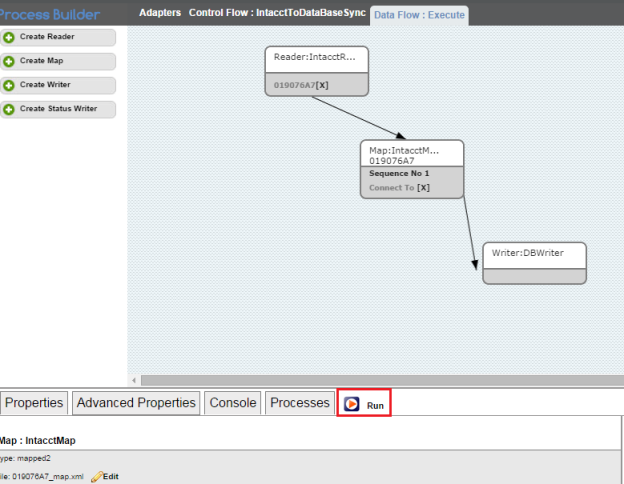
- You can run the integration using the Run button; or, the Scheduler on the left section of the Project console. Run button is available once you open the Project.
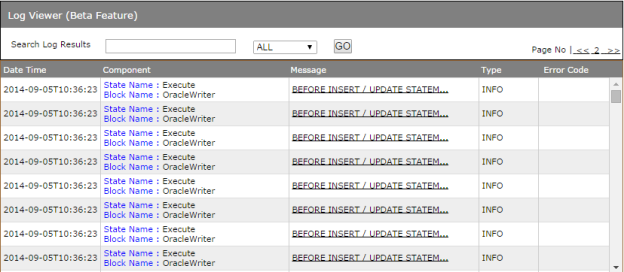
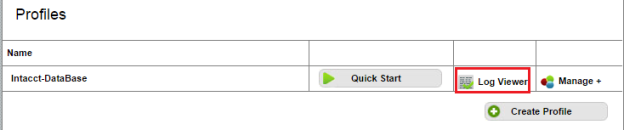
- Using the button Logs on the left section, you can view the Logs.
- This concludes brief introduction on how to build DBSync integration data flow from Sage Intacct to Database.
Attachments:
 worddavb065d3539c12c2621fa5a4defc594eb6.png (image/png)
 worddav50990a09f9c45b02ab3082df6a97eb0b.png (image/png)
 worddav4fc1fb5a4a8215412f7e17dfbf8e3426.png (image/png)
 worddavb5b3def786b06a65c3786f0716f94bd4.png (image/png)
 worddav69f4032c7d8d49a70b92ac8a1e587482.png (image/png)
 worddavdf81fdf4ba897788bb69cce1659bf5fc.png (image/png)
 worddav43d7c1087dc9cc0374608af1c3cb1ca3.png (image/png)
 worddav29798357a66784c544c7e58ddef7832d.png (image/png)
 worddav565aa0bbcf6c2b0dc84b0dfb949ae66f.png (image/png)
 worddavf9e822cac8f2cb2ce649eec48a79adeb.png (image/png)
 worddave2ee9fe7889a2048063540e2548e8442.png (image/png)
 worddav2e08863f014c4a3ccf3586ccd794c932.png (image/png)
 worddavf112e8934d8fe33cd0386ff6f1d7866b.png (image/png)
 worddav643d53bbf690efb86e39e7c2ea2473cf.png (image/png)
 worddavc0e645e0fea78b4dd19b0c35ee87aa15.png (image/png)
 worddav3539e75bfacc27937622db498a2c17e1.png (image/png)
 worddav208662b4bba090dbad5356c2f32ac7fb.png (image/png)
 worddav5b7650808075e7558420cc43d76ef4af.png (image/png)
 worddav977c900243c5d76523d45c101d7f20d2.png (image/png)
 worddav36b65e8e1f5e1659049f29bb13cbbdce.png (image/png)
 worddavc36404b24e5e40ae166f3e28069637b1.png (image/png)
 worddav15640c2cd55d48b7400773d85e599ad0.png (image/png)
 worddav4fa420e2e187b5f67a941921856508c0.png (image/png)
 worddave9200051cd700a6780940e8eaef823d2.png (image/png)
 worddav42f8e397c489e5d4c86b924d621cc4e2.png (image/png)
 worddav5e4d38b820b6200d0c57e706cddc928d.png (image/png)
 worddavde9638308f5eced45adce06c0415feda.png (image/png)
 worddavb708f0cabfd24bdba58757ab3b2ba393.png (image/png)
 worddavd27958e417b9a065aac3c71783394f72.png (image/png)
 worddave0951940c92ec5b37ef59a4dacb53c74.png (image/png)
 worddav90327692b72bb606b1206470ad522dce.png (image/png)