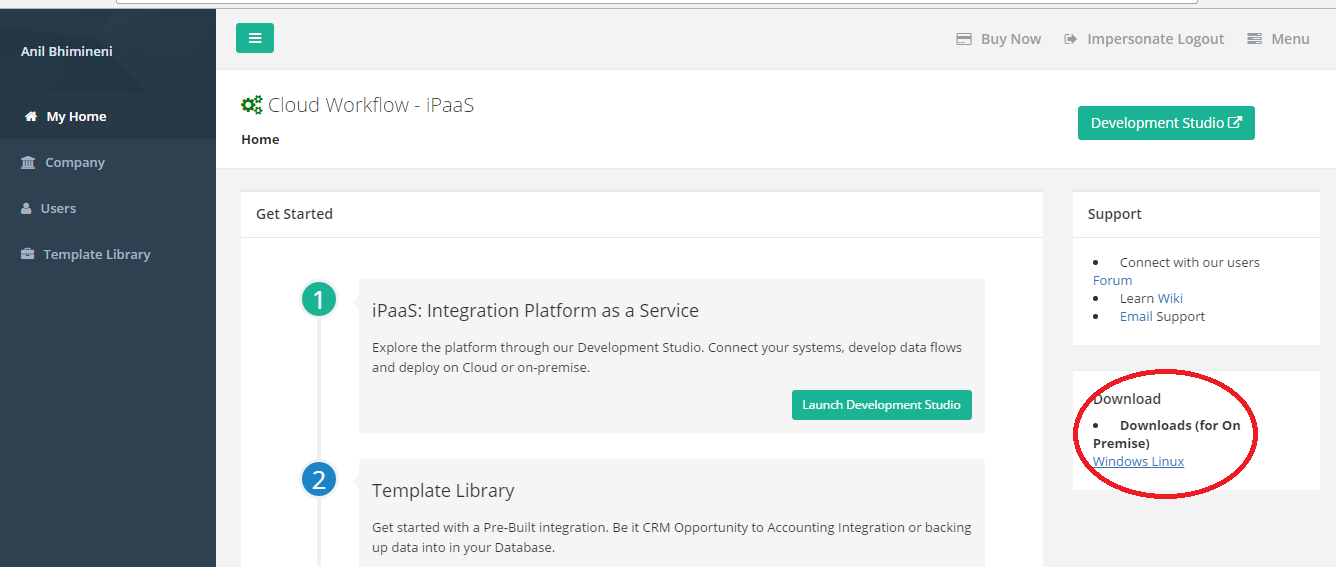
- Go to DBSync website www.mydbsync.com ,Navigate through My Account - > Customer Login.
- Input the valid DBSync platform Email ID and password to login to the DBSync App- center / Platform which would land the user on the landing page.
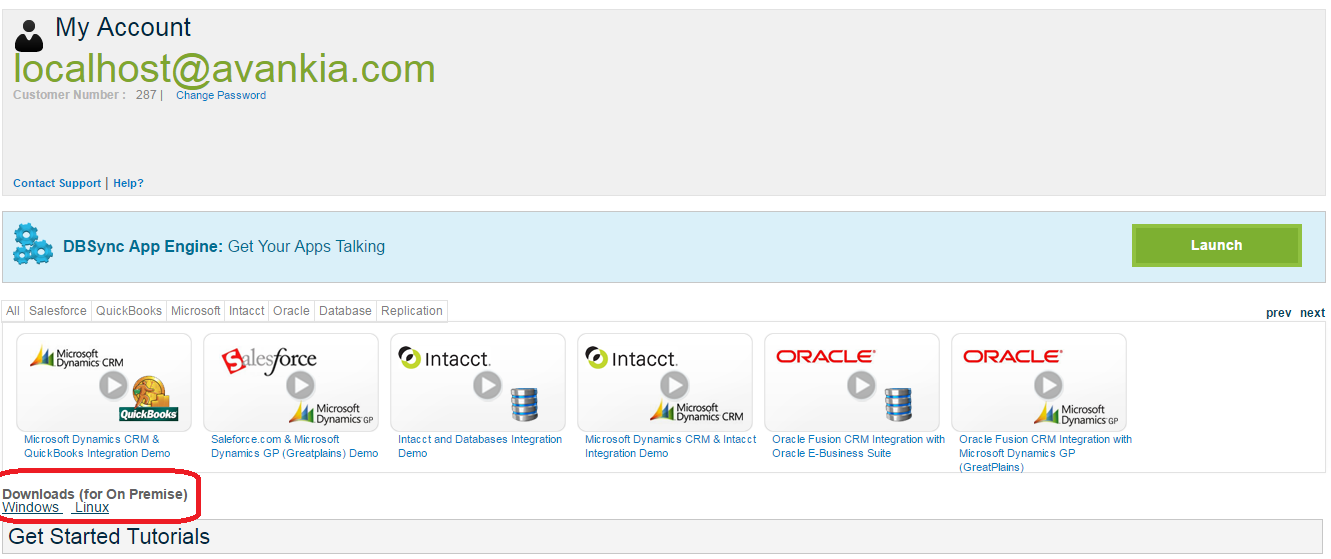
- Now, click on the the download link as highlighted in the image to get the installer to your "Downloads"
- you have an option to download the desired operating system version which would suite your needs, Either Linux or Windows.
DBSync Cloud Workflow Installation
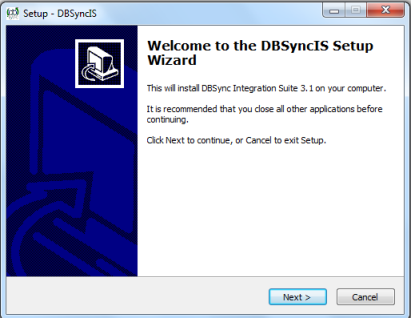
Now it's that you have the installer ready in your local file system, you can install the installer from the Downloads folder as explained the below steps.
- Start the installation by right-clicking on the installer and chose "Run as Administrator" option which would start the installation process.
- Sometime the windows might not allow you to install on your file system, If "User Account Control" window is popped up then click on Yes button to authorize the windows to proceed with installation.
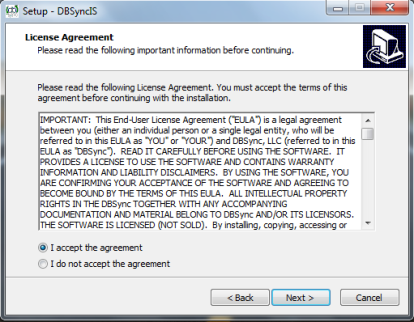
- Now, you will be on the "License Agreement" screen, make sure to select the option "I Accept the agreement" and click on Next button to proceed with the installation.
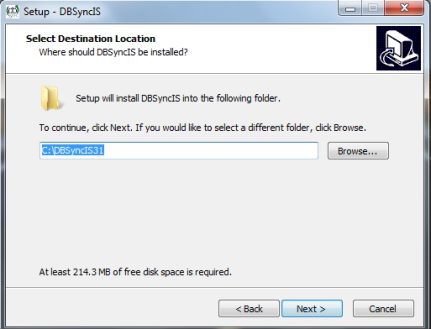
- The default installation path is shown as "C:\DBSync_CloudWorkflow". If you wish to choose a different folder, click on the Browse button and select the desired location to proceed with the installation.
- If you have installed the earlier versions of DBSync for evaluation purpose, the installer detects the installed directory and alerts as shown in the image.
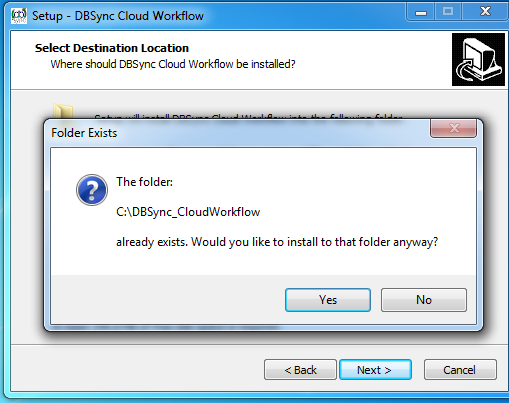
- Choose the option "Yes" if you wish to install the new version to the earlier installed directory, Else choose option "No" to change the installation directory.
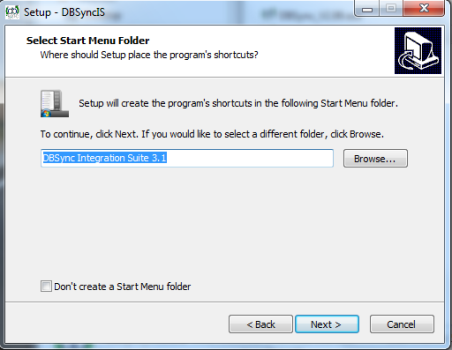
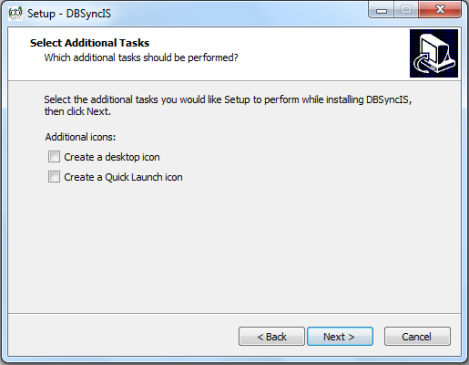
- On the "Select Additional Task" window, check the options "Create a desktop Shortcut" and "Create a Quick Launch shortcut" if you wish to have DBSync shortcuts on your desktop, quick launch panel respectively.click on "Next" button to proceed with installation.
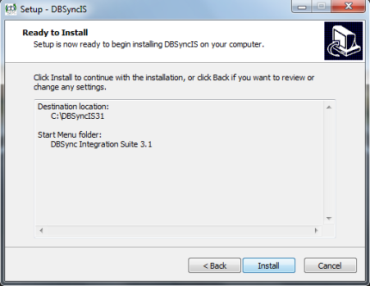
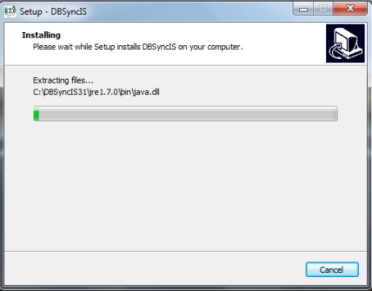
- From the "Ready to Install" window, Click on Install button to proceed with the installation and progress bar on the bottom of the "Installing" window will show you the progress of the installation.
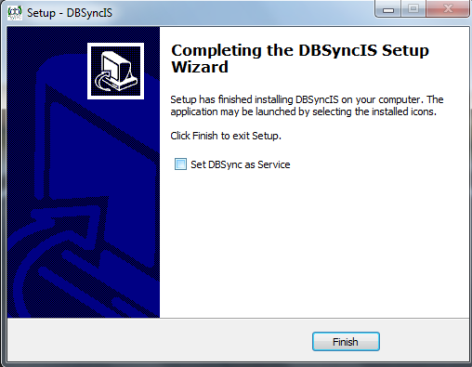
- Once the installation process is complete, you will be on window with name "Setup - DBSync Cloud Workflow" having an option "Set DBSync as service".
- If you wish to set it as a service, check the Check box "Set DBSync as Service" and click on "Finish" button as illustrated in image.
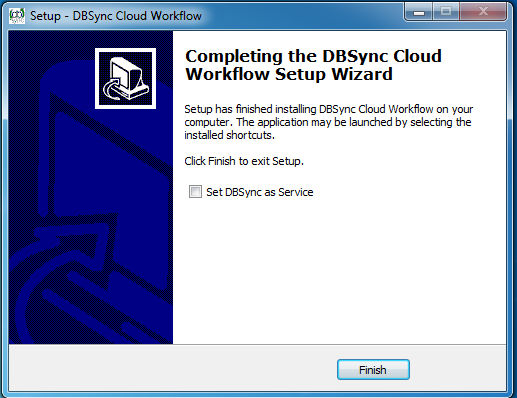
- If you have selected the option 'Set DBSync as Service', then DBSync would be running as a Windows Service in the background.
- If you wish to start DB sync manually, you can start DBSync from your desktop by starting "Start\All Programs\DBSync CloudWorkflow\DBSync".
Launch DBSync through All-Programs
If you wish to start the DBSync from the program files after the installation or any other time you login to your machine, you can go to Start->All Programs->CloudWorkflow choose DBSync service which would launch the tomcat that would acts as DBSync application server on the machine it is installed.
Now from your web-browser tab type the following address http://localhost:8080/cw/login.m?username=localhost_165@avankia.com&sessionId=avankia1&loginType=password&productCode=SomeCode to launch DBSync locally.
you can also learn the different options available of the installed folder of DBSync Cloud workflow, The following table shall list out all the available option for you to perform the necessary actions.
| Features | Description |
|---|---|
| DBSync | DBSync service which would launch the tomcat that would acts as DBSync application server on the machine it is installed |
| Remove Service | Choosing this option would remove the service from the windows services which runs in the background. Go to Control panel→Administrative Tools→ services Look for the service Apache Tomcat 8.5 DBSync which is removed. |
| Set as Service | On the start up of the windows, Instead of starting the service every time you can choose the option Set as Service that would run the service in the background. Go to Control panel→Administrative Tools→ services Look for the service Apache Tomcat 8.5 DBSync that keeps running. |
| Stop Service | Stop Service will stop the DBSync service |
| Uninstall | Uninstall will remove all the DBSync cloud workflow components from your machine. |
Attachments:
 download.png (image/png)
 1.png (image/png)
 2.png (image/png)
 3.png (image/png)
 4.png (image/png)
 5.png (image/png)
 6.png (image/png)
 7.png (image/png)
 8.png (image/png)
 Login.png (image/png)
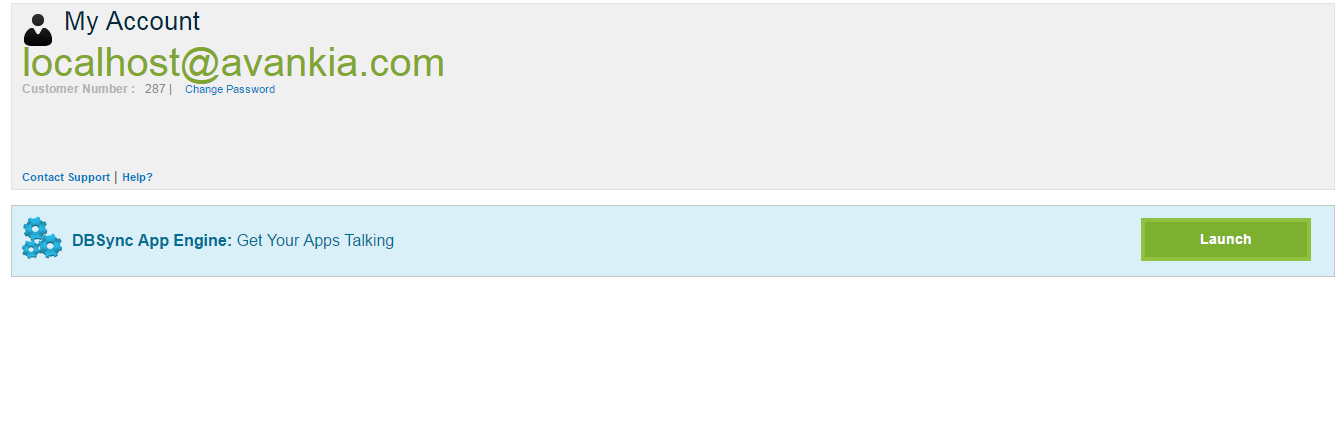 Image.png (image/png)
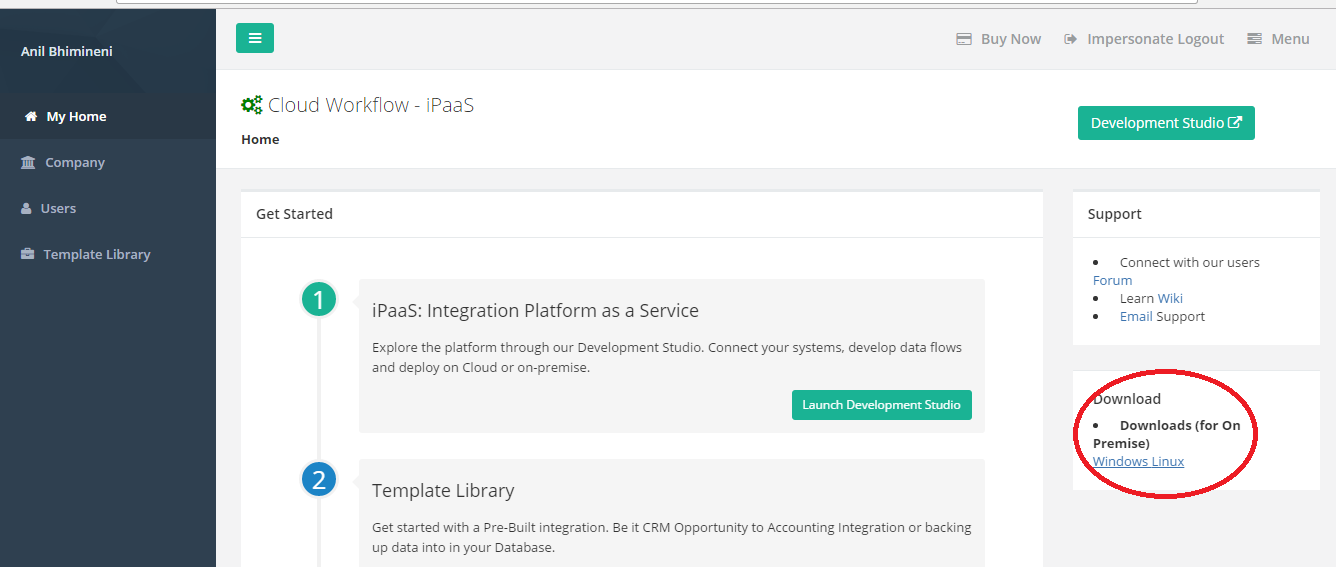 Image.png (image/png)
install.png (image/png)
Finish Installation.png (image/png)
Image.png (image/png)
install.png (image/png)
Finish Installation.png (image/png)