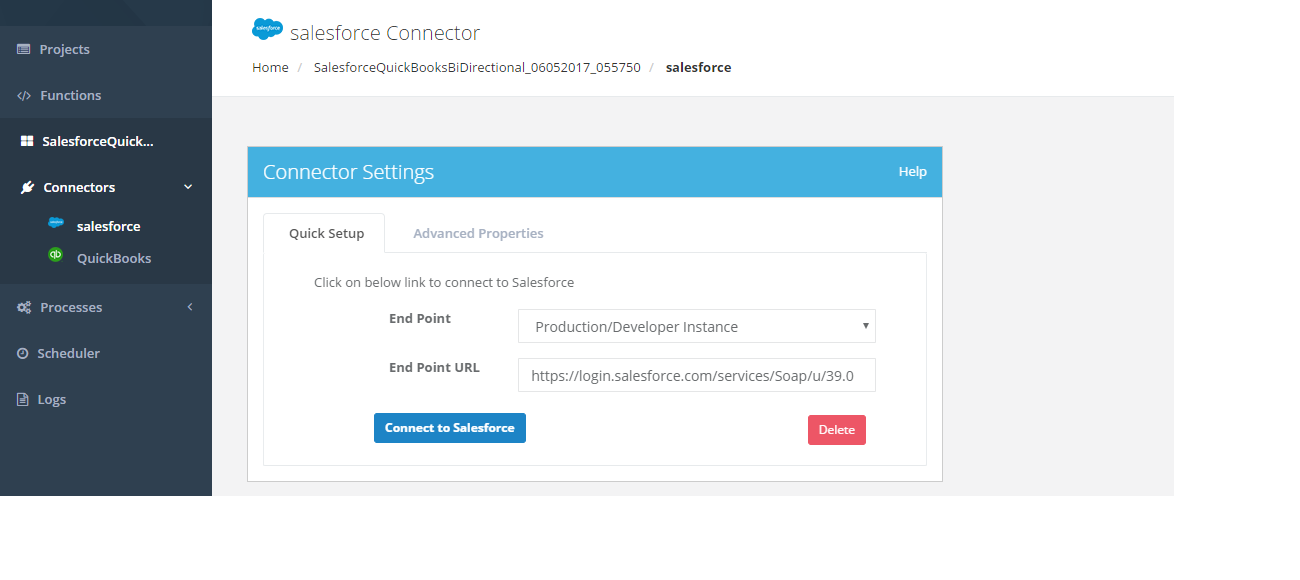
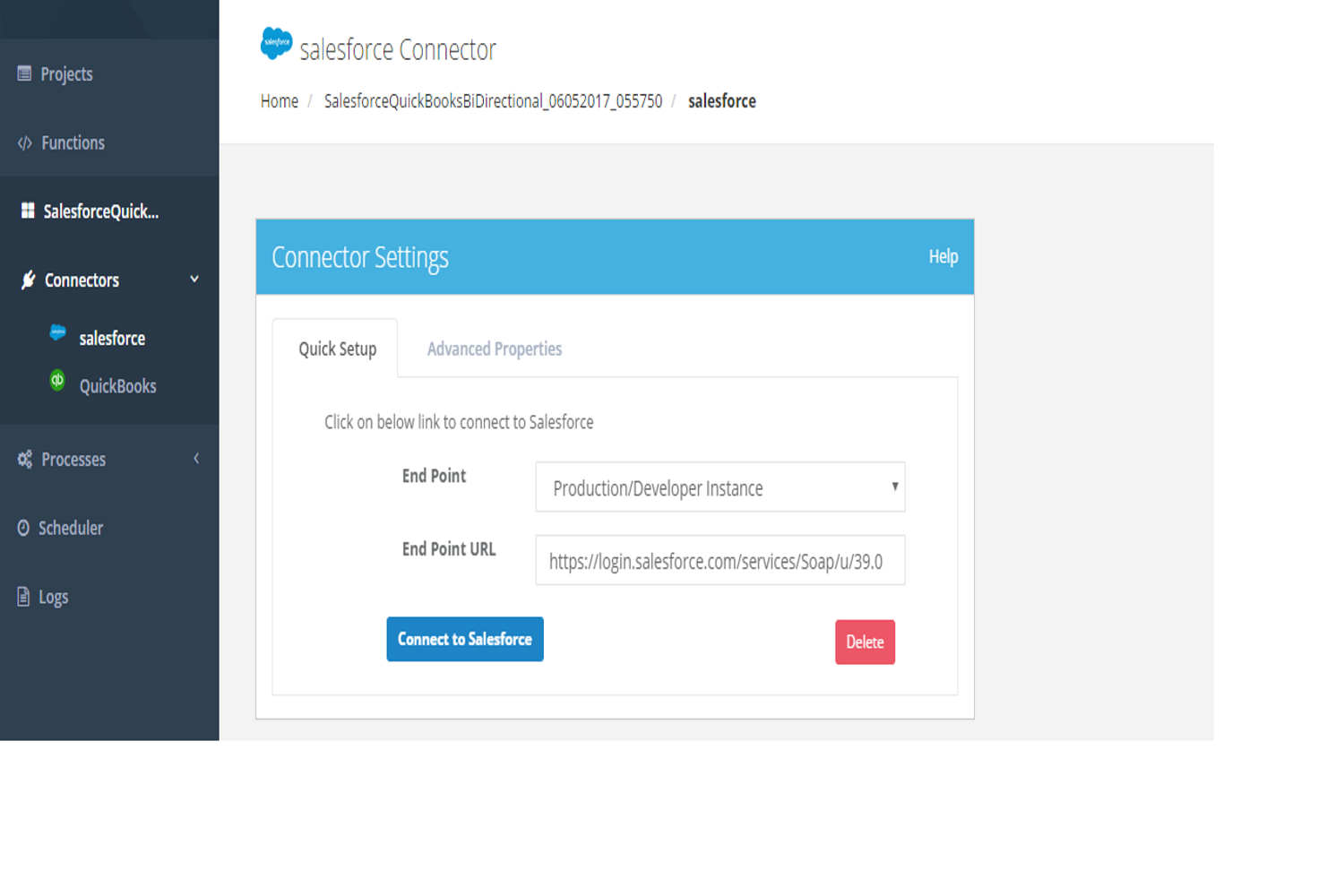
The Salesforce connector can be connected to Salesforce by OAUTH authentication, user can use the "Quick Setup" tab , Hit the "Connect to Salesforce" button and input his user credentials (Email Id, password ) on the Salesforce popup to authenticate his credentials. The other way to connect to Salesforce instance is to use "Advanced Properties" and to input the necessary parameters to connect with the desired Salesforce instance.
The below are the steps to get started with your Salesforce instance and to configure DBSync's Salesforce connector
- Click on the Edit of the Salesforce connector to input the Salesforce parameters as shown in the below image.
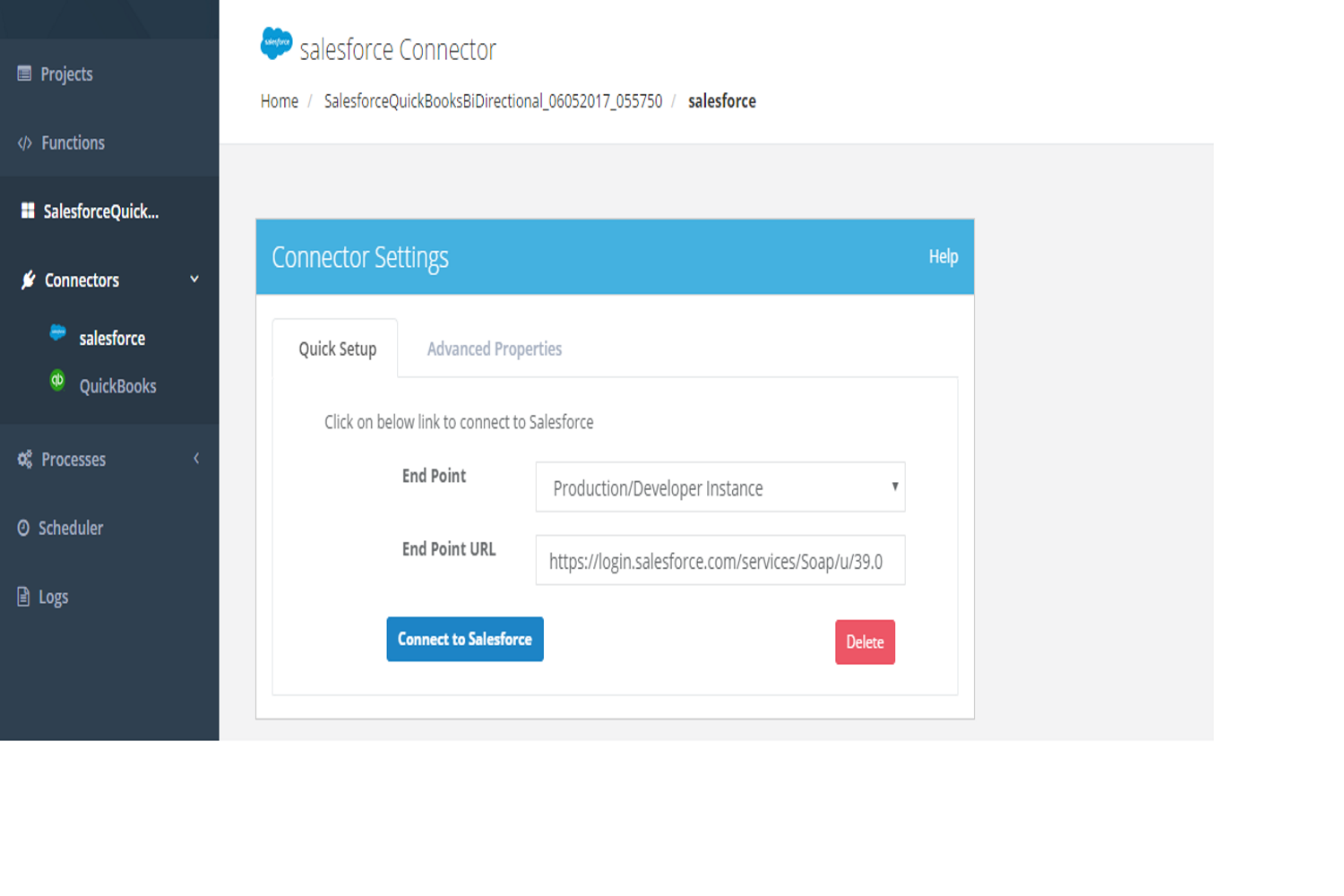
- Click on Save to save the settings.
The below table gives the required and optional parameters to be set for establishing a connection of Salesforce from where you would like to read the data or to write the data in case if you wish to authenticate the user credentials using "Advanced Tab"
Property | Description | Required |
|---|---|---|
UserName | The username to log into salesforce account. | yes |
Password | The password to login to salesforce account | Yes |
End-point | https://login.salesforce.com/services/Soap/u/39.0 | yes |
Sid | Session Id | optional |
Transport.compression | For compression | optional |
Proxy Host | If you use a proxy server then put <<proxy ip or host>> | optional |
Proxy Port | If you use a proxy server then put <<proxy port>> | optional |
Proxy Username | If you use a proxy server then put <<proxy username>> | optional |
Proxy Password | If you use a proxy server then put <<proxy password>> | optional |
Accept Gzip | As Applicable | optional |
Send Gzip | As Applicable | optional |