You must install the App having name : "DBSync: QuickBooks Integration" on your Salesforce instance . The following table lists out the various details of the App; Also these details can be viewed on the App detail page of the Salesforce App exchange.
| Package Details | Description |
|---|---|
| App Name | DBSync : QuickBooks Integration |
| Publisher | Avankia |
| Version Name | DBSync: QuickBooks Integration |
| Version Number | 1.24 |
you can follow the listed steps for installing the latest package into your Salesforce instance.
- You can get the package by clicking on he link .
- On clicking on the link, The Salesforce prompts the user to input login credentials (Email Id, password )so that package can be installed on the same user instance as which were given during login. The user instance should have administrative privilege to allow the installation of the package.
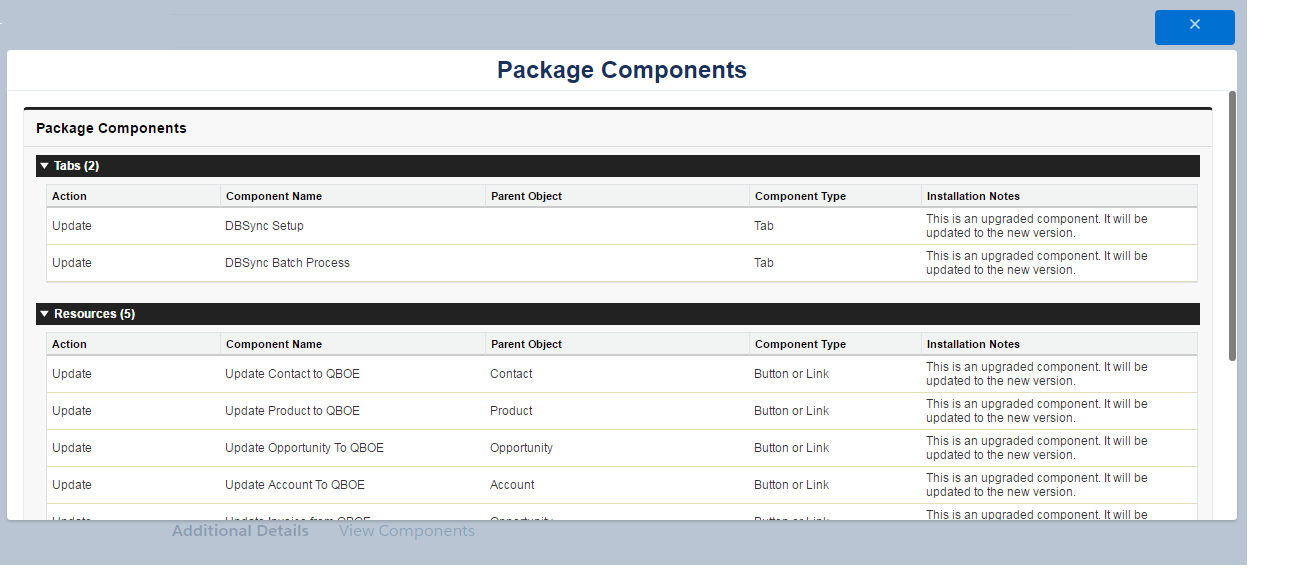
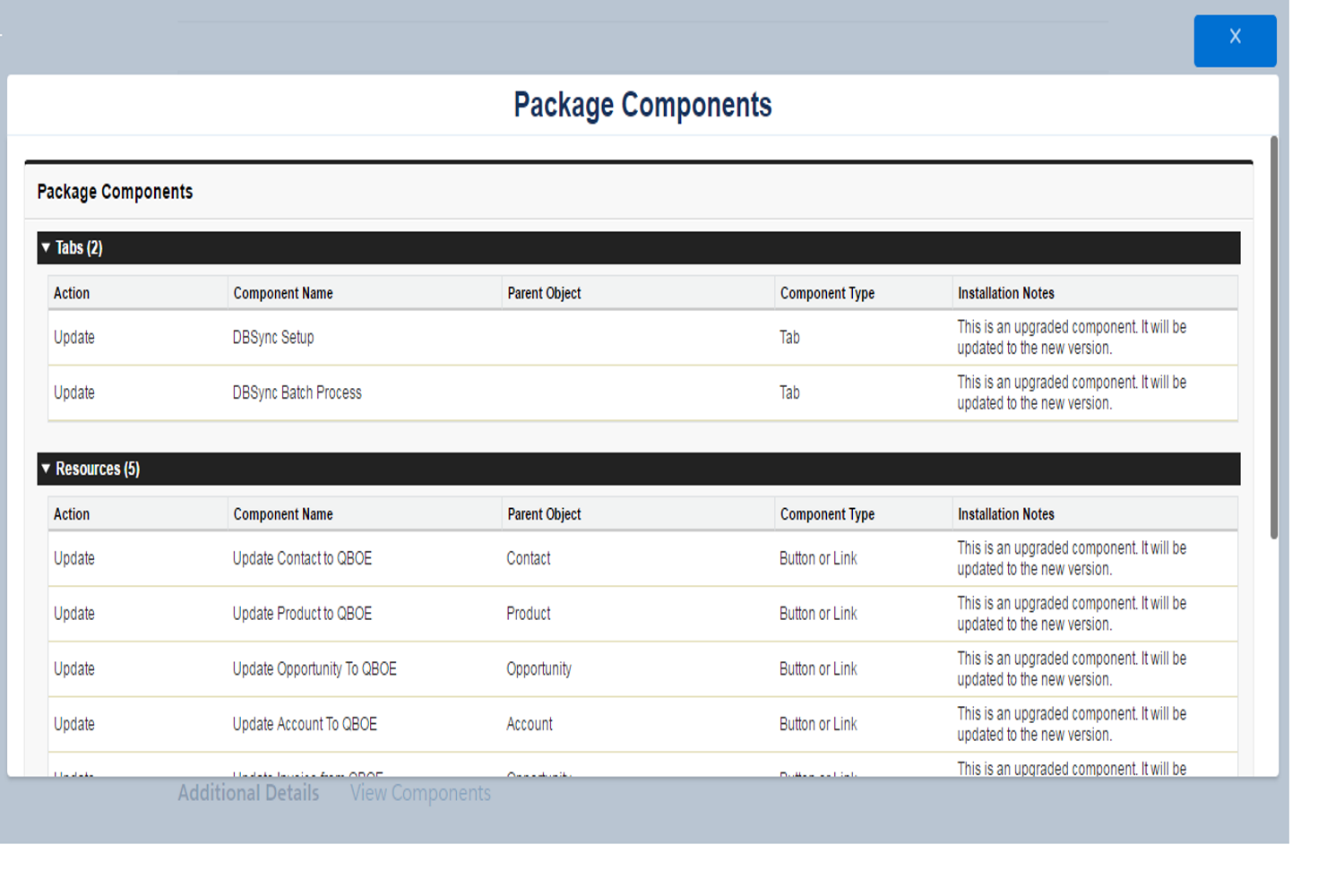
- Click on the "View Details" to view the package components as shown in the image.
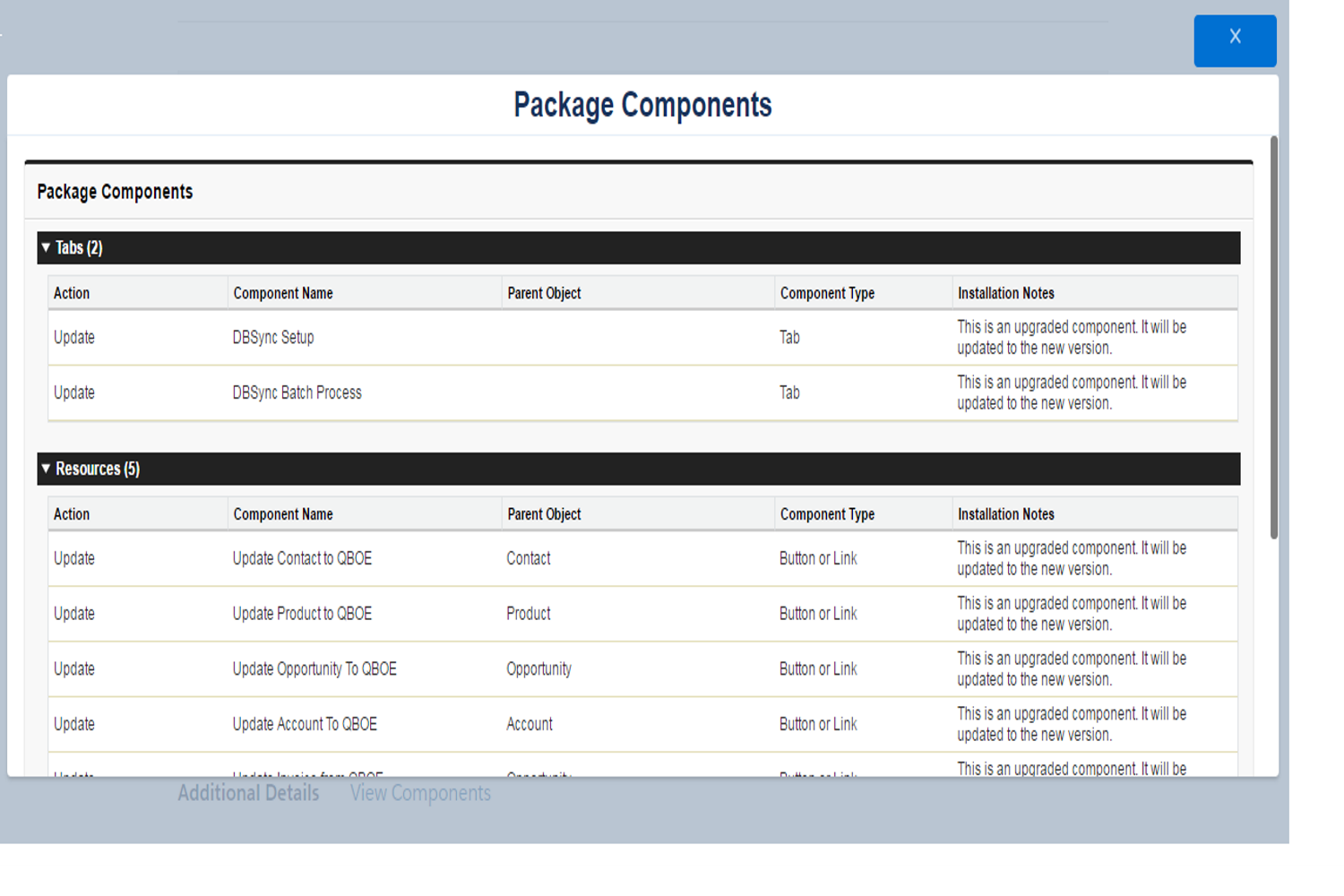
- You will have the control to choose either Administrator or All users or Specific user roles while package installation, You can choose appropriately and click "Install" button to proceed with the installation.
- The package installation is self explanatory, you should see the message of "Installation Complete".
- The DBSync Page Layouts should have been assigned to the objects Accounts, Contacts, Opportunity, Opportunity Products and Products on the Salesforce instance where you had installed the package.
The following steps should be referred to assign DBSync Page layout to Accounts Object. The existing page layout of Accounts object will be replaced by DBSync Page Layout. The custom fields that are available in the existing page layout should be moved to DBSync page layout.
- Go to Salesforce Setup> Customize> Accounts> Page Layouts. This will show the list of available page layouts for Accounts Object. Click on Page Layout Assignment.
- You will find the list of default Page Layouts assigned for every Salesforce Profile. Click on Edit Assignment to proceed.
- Click on the Page Layout next to the required profile. Account Layout is the existing page layout for profile System Administrator and System Administrator is the profile that should be assigned with DBSync page layout. In this case Account Layout should be selected next to System Administrator.
- Select DBSync Account Layout from Page Layout To Use picklist. Page Layout will be changed from Account Layout to DBSync Account Layout. Click on Save to save the new page layout assignment.
- Similarly assign DBSync Page Layout for Salesforce Objects Contacts, Opportunity, Opportunity Products and Products.